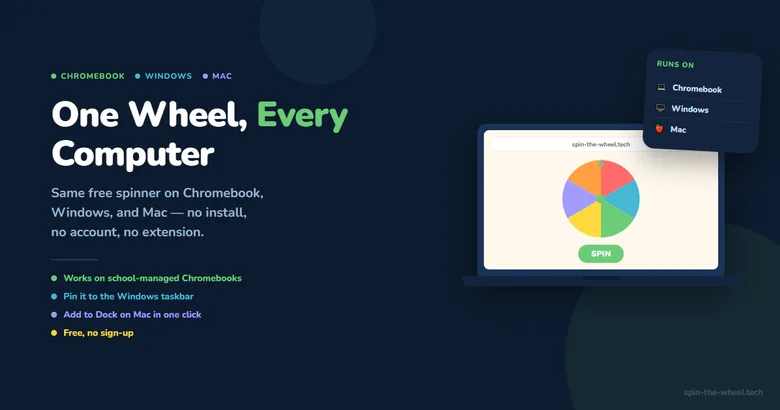
One tool, three very different computers
Whether you're on a school-issued Chromebook, a Windows desktop in an office, or a Mac at a design studio, Spin the Wheel works the same way: open a browser, add your entries, tap Spin. No install, no extension, no admin permissions, and nothing that a district IT policy or a locked-down work laptop would need to approve.
That matters more in classrooms specifically. Chromebooks are now the primary student device in 42% of US school districts, compared with 15% for Windows laptops, 13% for Windows desktops, and 13% for iPads (aboutchromebooks.com, "Education Sector Chromebook Adoption Statistics," 2026). Outside the classroom, the picture flips: Windows still leads overall desktop web usage at roughly 62%, with macOS around 14.6% and ChromeOS near 1.4% (StatCounter Global Stats, Desktop Operating System Market Share, retrieved 2026-07-18). A tool built for only one of these platforms misses most of the room.
📌 Key Takeaways
- Chromebooks are the primary device in 42% of US school districts, ahead of Windows laptops (15%), Windows desktops (13%), and iPads (13%) (aboutchromebooks.com, 2026).
- Windows still leads overall desktop web usage at roughly 62%, with macOS near 14.6% (StatCounter, 2026).
- Spin the Wheel needs no extension or admin install, so it runs on locked-down school Chromebooks and managed work laptops alike.
- Every platform can install it as a standalone app: the Chromebook shelf, the Windows taskbar, or the Mac Dock.
- The cryptographic randomness behind every spin is identical across Chromium and WebKit, so no platform gets a fairer result.
What does a computer need to run a spin wheel?
Nothing beyond a modern browser. Spin the Wheel is a webpage, not a native app, so the requirements are the same whether you're on a $300 Chromebook or a $3,000 workstation:
- Any browser released in the last few years, Chrome, Edge, Safari, or Firefox all qualify
- An internet connection for the first load only, the wheel runs locally after that
- No extension, no admin rights, and no software installation
That low bar is deliberate. A tool that needs an extension gets blocked by a school's extension allowlist. A tool that needs installer permissions gets blocked by corporate device management. A plain webpage sidesteps both.
How to use Spin the Wheel — step by step
The core flow, open a browser, add entries, tap Spin, is identical everywhere. The differences are in how each platform opens the browser and saves a shortcut.
💻 On ChromebookOpen Chrome from the shelf
ChromeOS ships with Chrome as the only browser, so there's no choice to make. Click the Chrome icon in the shelf at the bottom of the screen.
Go to spin-the-wheel.tech
Type the address in the omnibox and press Enter. The page loads instantly, even on the lower-powered hardware common in school Chromebook carts.
Add your entries
Click the text area and type names or options, one per line, using the built-in keyboard or an attached one.
Click Spin
The wheel animates and lands on a result. Click Remove & Spin Again to draw again without repeating a winner.
Pro tip: click the install icon at the right of the address bar (or the three-dot menu > "Cast, save, and share" > "Install page as app") to pin Spin the Wheel to the shelf. It opens full-screen, with no address bar, exactly like a Chrome OS app.
Open Edge or Chrome
Both are pre-installed or a quick download on any Windows PC and behave identically, since they share the same Chromium engine.
Go to spin-the-wheel.tech
Type the address in the bar and press Enter. No sign-in prompt, no cookie banner blocking the wheel.
Add your entries
Click the text area and type your list, one entry per line. The wheel redraws itself in real time as you type.
Click Spin
The wheel spins and slows to a result below it. Click Remove & Spin Again for a sequence of picks with no repeats.
Pro tip: click the install icon in the address bar, or the three-dot menu > Apps > "Install this site as an app," to pin it to the Start menu and taskbar. It opens in its own window, without browser tabs cluttering the view during a live meeting.
Open Safari or Chrome
Safari is the macOS default and uses Apple's WebKit engine; Chrome uses Chromium. Both fully support the tool.
Go to spin-the-wheel.tech
Type the address and press Return. The page is lightweight and loads instantly on any Mac from the last decade.
Add your entries
Click the text area and type names or options, one per line, with the trackpad or an external keyboard.
Click Spin
The wheel animates to a stop on the result. Click Remove & Spin Again to keep drawing without a repeat winner.
Pro tip: in Safari, choose File > Add to Dock. In Chrome, click the install icon in the address bar. Either creates a standalone icon in the Dock that opens the wheel in its own window, no tabs, no toolbar.
What's actually different across platforms
- Keyboard shortcuts work everywhere. Tab to the Spin button and press Space or Enter to trigger it, standard browser behavior on Chromebook, Windows, and Mac alike. Handy for keyboard-only setups or accessibility needs.
- Screen mirroring differs by platform. Chromebook has Cast built into the browser toolbar. Windows offers "Cast to Device" from File Explorer or a wireless display connection. Mac uses AirPlay to an Apple TV or AirPlay-capable display. All three get the wheel onto a bigger screen for a classroom or a meeting room.
- Browser engines differ under the hood, results don't. Chrome and Edge on Chromebook and Windows run on Chromium's V8 engine; Safari on Mac runs WebKit's JavaScriptCore. Both implement the same Web Cryptography API specification, so the randomness quality is identical regardless of engine.
- Managed-device restrictions hit Chromebooks hardest. School and enterprise ChromeOS devices often run under a management console that blocks unapproved extensions and some sites outright. Since Spin the Wheel needs neither an extension nor elevated permissions, it clears most of those policies without an IT request.
- Trackpad vs. touchscreen vs. mouse, it doesn't matter. Click, tap, or use a mouse, all three trigger the same Spin button the same way.
What people use it for, by platform
🎓 Chromebook carts
Teachers load the class roster once and pass Chromebooks around, or Cast the wheel to the classroom display so every student sees the same spin.
🏢 Windows office standups
Pin it to the taskbar next to a meeting app, load the team list before the call, and spin to set speaking order without switching windows.
🎨 Mac creative studios
Design and agency teams use it to assign review tasks or pick which concept gets presented first, right from the Dock between other creative apps.
🏠 Any shared family computer
Whichever machine is in the kitchen or living room, Chromebook, Windows, or iMac, the same site settles who does dishes or picks the movie.
The technology behind randomness, on any platform
Most browser-based random pickers lean on Math.random(), a pseudo-random generator that follows a deterministic formula from a fixed seed. V8, the engine behind Chrome, Edge, and ChromeOS, documents on its own engineering blog that it uses the xorshift128+ algorithm for Math.random() while noting that algorithm still isn't intended for cryptographic use (v8.dev/blog/math-random, 2015). Safari's JavaScriptCore engine has similar limitations for the same function.
Spin the Wheel uses crypto.getRandomValues() instead, the Web Cryptography API standard that Chromebook, Windows, and Mac all use for tasks like HTTPS session key generation. Each platform draws entropy from its own operating system's randomness source, but the specification requires the same cryptographic quality from every compliant browser. A spin on a five-year-old Chromebook is exactly as unpredictable as one on a new Mac.
Run the built-in Auto Spin ×10,000 test on whichever machine you're using to see this for yourself. It simulates ten thousand spins in under a second using the same crypto.getRandomValues() call as a real spin, so the distribution reflects genuine behavior, not a demo mode with different math.
| Platform | Default browser | Install shortcut |
|---|---|---|
| Chromebook | Chrome (only option) | Install icon in address bar → adds to shelf |
| Windows | Edge (Chrome also common) | Install icon → pins to Start & taskbar |
| Mac | Safari (Chrome also common) | File > Add to Dock (Safari) or install icon (Chrome) |
Frequently asked questions
Does Spin the Wheel work on a school-managed Chromebook?
Yes. It runs as a plain webpage with no extension, no admin install, and no elevated permissions, so it works even on Chromebooks locked down with a district-managed policy and an extension allowlist. If a school network filter blocks the domain, ask IT to allowlist spin-the-wheel.tech.
Can I use it in Microsoft Edge on Windows, or do I need Chrome?
Either works identically. Edge and Chrome share the same Chromium engine and both implement the Web Cryptography API the wheel depends on. Firefox on Windows also works, since crypto.getRandomValues() is a cross-browser standard, not a Chromium-only feature.
How do I add Spin the Wheel to my Mac Dock?
In Safari, open the site and choose File > Add to Dock. In Chrome on Mac, click the install icon in the address bar (or the three-dot menu > Cast, save, and share > Install page as app). Either method creates a standalone icon that opens the wheel without browser tabs or toolbars.
Is there a keyboard shortcut to spin without a mouse?
Yes. Tab to the Spin button and press Space or Enter to trigger it, standard behavior for any focused button in a browser. This works identically on Chromebook, Windows, and Mac, and is useful for keyboard-only or accessibility-focused setups.
Does it work the same in Chrome, Edge, and Safari, or is one more accurate?
crypto.getRandomValues() is a Web Cryptography API specification that every compliant browser must implement to the same entropy standard, regardless of whether the underlying engine is Chromium (Chrome, Edge, ChromeOS) or WebKit (Safari). No browser gets a fairer or less fair result.
Ready to spin?
Open whichever browser is already running, go to spin-the-wheel.tech, add your list, and click Spin. It takes about ten seconds on a Chromebook, a Windows PC, or a Mac, because it's the same webpage everywhere, not three different apps pretending to be one tool.
Sources
- aboutchromebooks.com. "Education Sector Chromebook Adoption Statistics 2026." Retrieved 2026-07-18. aboutchromebooks.com/education-sector-chromebook-adoption-statistics
- StatCounter Global Stats. "Desktop Operating System Market Share Worldwide." Retrieved 2026-07-18. gs.statcounter.com/os-market-share/desktop
- V8 team. "Math.random()." v8.dev blog, 2015. Retrieved 2026-07-18. v8.dev/blog/math-random