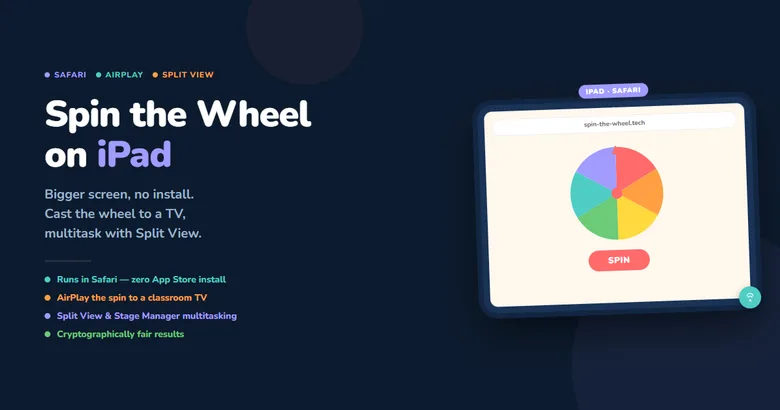
An iPad is not just a bigger iPhone
Apple's iPad holds 58.2% of the US tablet market, more than three times Samsung's share, according to a rolling 12-month measure covering April 2025 through April 2026 (StatCounter GlobalStats, 2026). That's a lot of screens sitting in bags, on classroom carts, and on kitchen counters, and most of them can run a browser-based spin wheel exactly the way a laptop can.
This guide covers how to use Spin the Wheel on iPad specifically, not as an afterthought to a phone guide. The larger screen, iPadOS's multitasking tools, and Apple Pencil support change how the tool fits into a classroom, a team meeting, or a living room, in ways a phone screen simply can't match.
📌 Key Takeaways
- No app needed. Open Safari or Chrome on iPad and go straight to the site.
- AirPlay mirrors the spin to any Apple TV or AirPlay 2-compatible smart TV in seconds.
- Split View and Stage Manager let you run the wheel alongside notes, a roster, or a video call.
- Apple Pencil and Scribble convert handwriting into typed entries, no keyboard required.
How to use Spin the Wheel on iPad — step by step
The flow is the same whether you're on an iPad mini, a base iPad, an iPad Air, or an iPad Pro. Safari is the default, but Chrome, Firefox, and Edge for iPad all work identically, since the Web Cryptography API behind every spin is a shared browser standard, not a Safari-only feature.
📱 On iPadOpen Safari
Tap the Safari icon on your Home Screen or Dock. Any other iPad browser works too — the tool doesn't depend on Safari-specific features.
Go to spin-the-wheel.tech
Type the address in the tab bar and tap Go. The wheel loads instantly, no splash screen, no sign-in, no cookie banner blocking the page.
Add your entries
Tap the text area and type with the on-screen keyboard, a connected keyboard, or Apple Pencil. The wheel redraws in real time as names go in.
Tap Spin
The wheel animates and lands on a result. Tap Remove & Spin Again for sequential picks without repeating a winner.
Pro tip: tap the Share icon in Safari's toolbar and choose Add to Home Screen. The icon opens the wheel full-screen, with no address bar, exactly like an installed app.
What makes iPad better than a phone for this
A phone gets the job done, but an iPad adds three things a small screen can't: a bigger shared view, real multitasking, and Apple Pencil input. None of these require a special version of Spin the Wheel. They're standard iPadOS features that work with any website open in Safari.
- AirPlay to any screen in the room. Swipe down from the top-right corner to open Control Center, tap Screen Mirroring, and pick an Apple TV or AirPlay 2-compatible smart TV. The wheel mirrors onto the bigger display in a couple of seconds, so a classroom, an office, or a livestream audience all watch the exact same spin land, not a recap of what happened on a small screen.
- Split View for real multitasking. Drag a second app, like Notes or a class roster, to the edge of the screen while Safari stays open with the wheel. Both stay visible and usable side by side, so you can check who's already been picked without leaving the spinner.
- Stage Manager for overlapping windows. On newer iPad models, Stage Manager lets you resize and layer the wheel with other open apps instead of snapping them to fixed halves, useful when you're running the spin next to a video call or a spreadsheet.
- Apple Pencil and Scribble. Tap the entry field with Apple Pencil and write by hand. Scribble converts the handwriting into typed text automatically, even in an ordinary web form field, so adding a class list can happen without ever touching the keyboard.

What people use it for
An iPad's size and portability put it in more places than a laptop and put more screen on display than a phone. That combination covers a wider range of everyday uses than either device alone.
🎓 Classrooms
Load the class roster, AirPlay to the classroom display, and call on students at random. Everyone sees the same spin land at once, no dispute about who was actually picked.
👨👩👧 Family decisions
Pass the iPad around the table to pick a restaurant, a movie, or who does the dishes. The screen is big enough for everyone to watch without crowding around a phone.
💼 Team meetings
AirPlay the wheel to a conference room TV to pick who presents first, or run it in Split View next to your meeting notes without switching tabs.
🎥 Streamers & creators
Prop the iPad in a stand, add entrant names, and spin on camera for a giveaway. The large screen reads clearly on a livestream in a way a phone screen often doesn't.
Free, works offline after loading, and works in any iPad browser
Spin the Wheel is free on iPad, the same as it is everywhere else: no App Store purchase, no in-app subscription, no entry cap, no watermark on the result. Cryptographic randomness, the 10,000-spin fairness test, Remove & Spin Again, and the winners log are all available the moment the page loads.
Once loaded, the wheel runs entirely in the browser with no server calls during a spin, so a dropped Wi-Fi connection afterward doesn't stop it working. Add the site to your Home Screen so Safari caches it locally, useful in school buildings and event venues where signal is unreliable. And because the tool depends on the Web Cryptography API rather than a Safari-specific feature, it works identically in Chrome, Firefox, and Edge for iPad too.
Frequently asked questions
Do I need to download an app to use Spin the Wheel on iPad?
No. Spin the Wheel runs entirely in Safari or Chrome for iPad. There's nothing to download from the App Store, no account to create, and no subscription. Open spin-the-wheel.tech, add your entries, and tap Spin.
Can I show the wheel on a bigger screen, like a classroom TV or projector?
Yes. Swipe down from the top-right corner to open Control Center, tap Screen Mirroring, and select an Apple TV or AirPlay 2-compatible smart TV. The wheel mirrors instantly, so everyone in the room watches the same spin at once.
Can I use Split View or Stage Manager while the wheel is open?
Yes. Both multitasking modes work with any Safari tab, including spin-the-wheel.tech. Split View pins the wheel beside a second app like Notes; Stage Manager lets you resize and overlap it with other windows on newer iPad models.
Can I add names to the wheel using Apple Pencil?
Yes. Tap the entry field with Apple Pencil and write directly on the screen. Scribble, iPadOS's built-in handwriting feature, converts your writing into typed text automatically, even in a standard web text field like this one.
Does Spin the Wheel work on older iPad models or without Wi-Fi?
It works in any modern version of Safari, including older iPad models still receiving iPadOS updates. Once the page has loaded, spins run entirely in the browser with no server calls, so it keeps working if your connection drops afterward.
Ready to spin?
Open Safari on your iPad, go to spin-the-wheel.tech, add your list, and tap Spin. If you want the room to watch, AirPlay it to the nearest screen first. If you need your notes open at the same time, drag them into Split View. Either way, the whole thing takes about as long as unlocking the iPad in the first place.